> For the complete documentation index, see [llms.txt](https://docs.ilsas.uniwa.gr/llms.txt). Markdown versions of documentation pages are available by appending `.md` to page URLs; this page is available as [Markdown](https://docs.ilsas.uniwa.gr/urungi/english/urungi-user-manual/5.-dashboards.md).
# 5. Dashboards
### 5.1 Build a Dashboard
Dashboards group together several reports in one page, with very advanced formatting possibilities\
(everything that is possible in HTML).
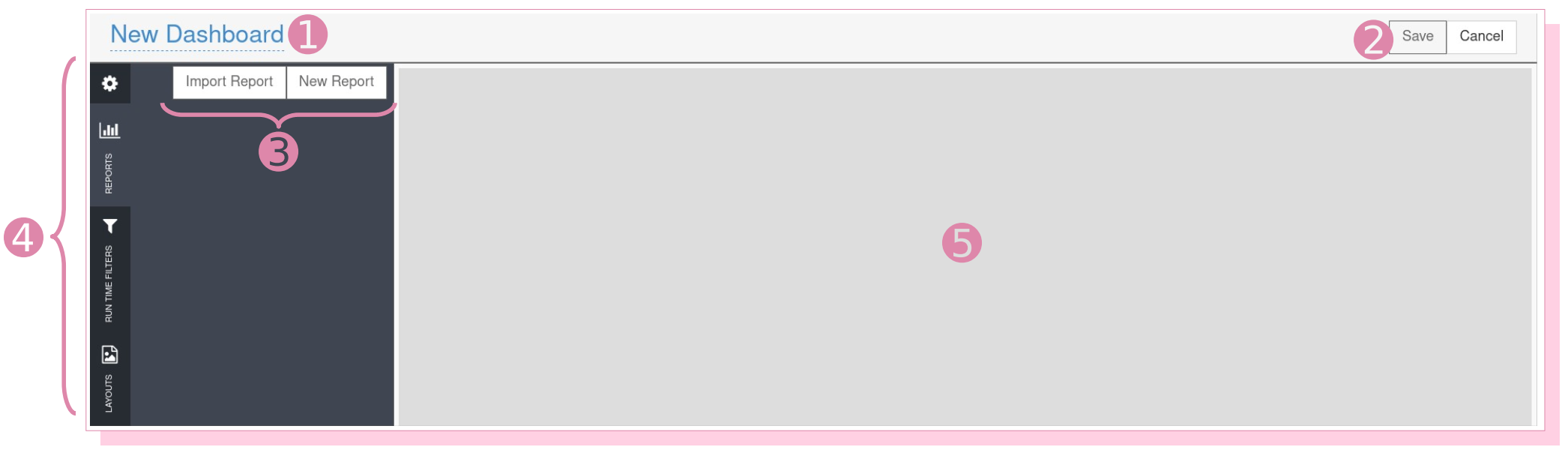
* ➊ Title of the dashboard
* ➋ Save the TDB
* ➌ Create a report from the dashboard (New Report) or duplicate an existing report in the 'My Reports' section in order to add it to the dashboard (Import Report).
* ➍ 3 tabs :
* Reports: lists the reports added to the dashboard
* Dynamic filters: filters associated with reports
* Layers: list of templates (forms) that correspond to an assembly of boxes where you will arrange the reports
* ➎ Space where the boxes and reports will be arranged.
Suggested procedure:
1. give a name to the dashboard
2. add the reports by creating or importing them
3. select one by one the boxes of your choice and drag them to the right
4. rename the titles of each box by clicking on them
5. drag each report into the box of your choice
6. save
7. go back to the dashboard to add the report filters (if necessary). From the 'Dynamic Filters' tab, drag the proposed filter(s) to the right. They correspond to the report filters. Attention: you can have several filters with the same title (Year, Library, etc.) because they are filters from different reports.
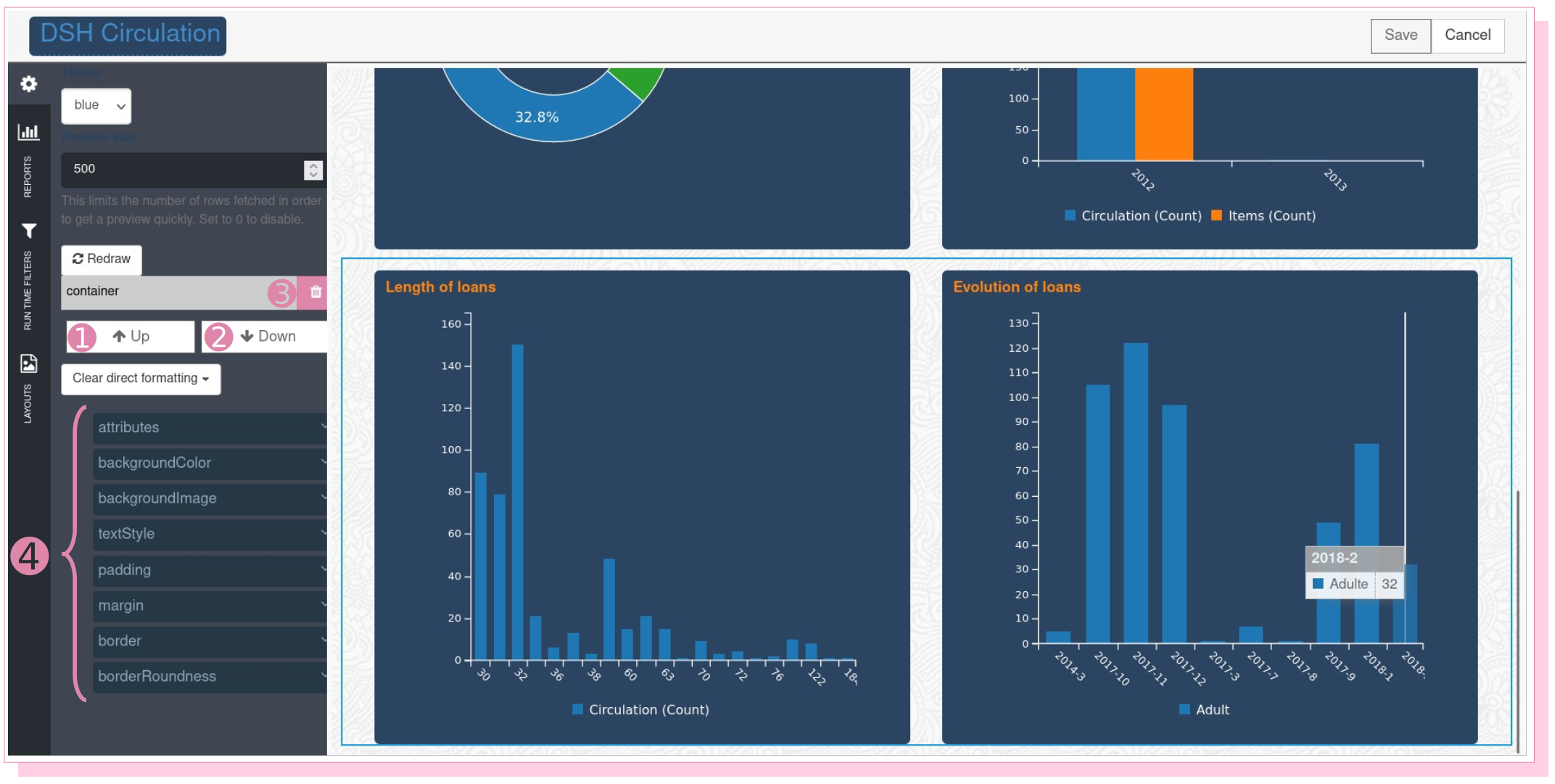
The layout of the filters or boxes in the dashboard can be adjusted using the 'Up' ➊ and 'Down' ➋ buttons available when selecting a box or filter.
### 5.2. The different horizontal strips (‘LAYERS’)
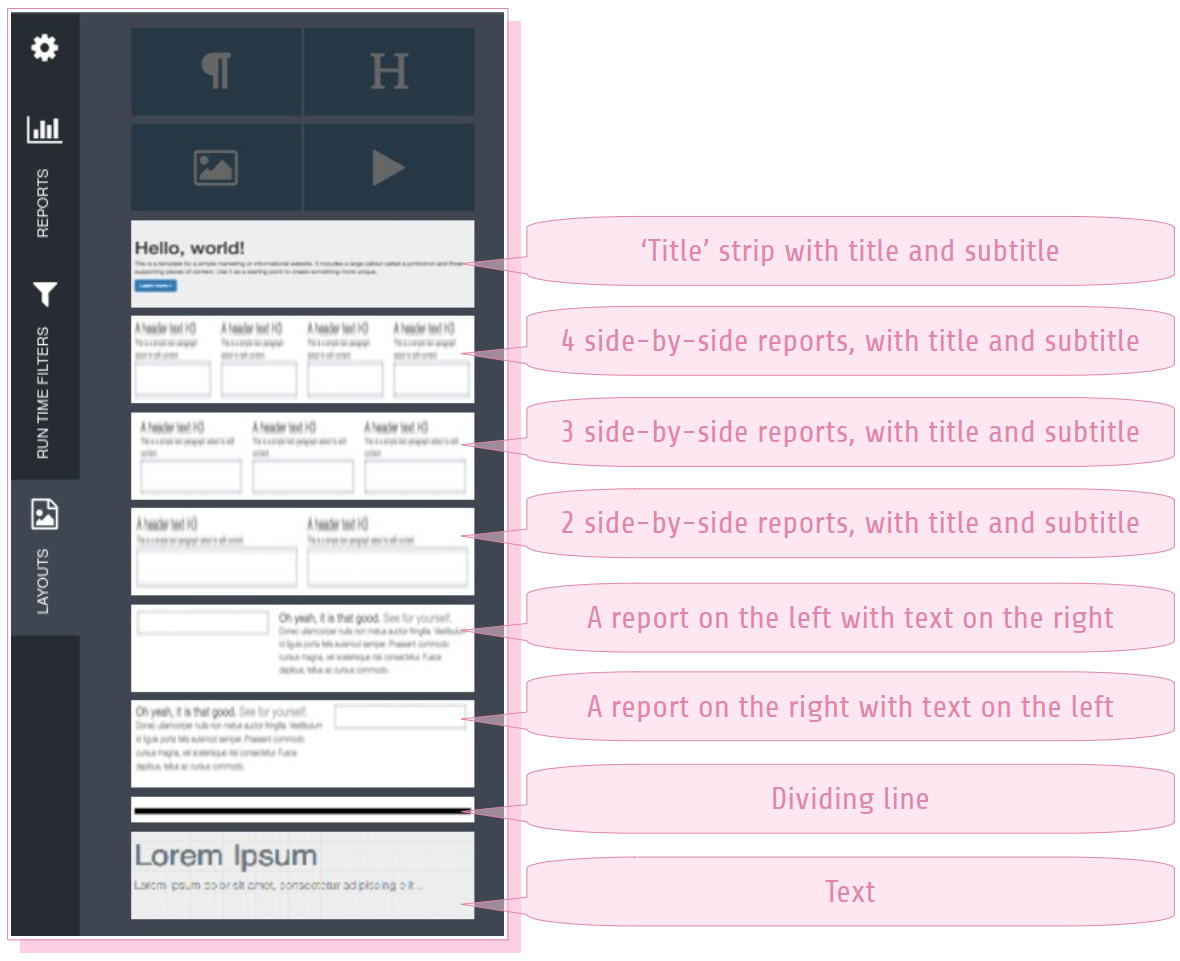
When you select the ‘Layers’ tab on the left, you will have at your disposal the different horizontal strips that can be placed on your dashboard:
### 5.3 Formatting and Themes
Urungi offers different themes to quickly and consistently format your dashboards.
To apply a theme, simply:
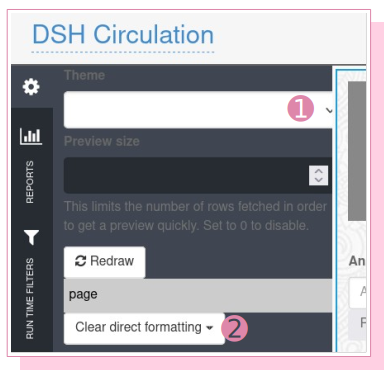
* select the entire dashboard by clicking on the outermost box (the grey background when creating a new dashboard)
* select the theme ➊
* if you have applied specific layouts, the theme will not overwrite them. You can however remove them by clicking on ‘Clear direct formatting’ ➋
Themes are CSS sheets, you will find at the end of the document the different classes concerned.
### 5.4 Sharing a Dashboard
Once the dashboard is finished and saved, you can share it in a folder in the shared space for example.
### 5.5 Duplicate a Dashboard
Finally, it is also possible to duplicate dashboards.